Setup guide
From empty account to first cruise on sale
Twelve steps, about an hour in total. You can stop after any of them and come back later — nothing you have entered is lost, and nothing is published until you say so.
Part 1 (steps 1 to 4) opens your account. Part 2 (steps 5 to 10) sets up payments, email and your public page, then builds your first departure. Part 3 (steps 11 and 12) puts it in front of clients and keeps the conversation going after they book.
Before you start
Have these within reach. Missing one of them is the usual reason a setup stops halfway.
- An email address you can open right now — that is how you sign in.
- An authenticator app on your phone (1Password, Bitwarden, Apple Passwords, Google Authenticator…).
- Your company details and a bank account, for Stripe.
- Access to your DNS zone, if you want emails to leave from your own domain (step 6).
- Your boat’s layout: decks, cabins, berths per cabin.
A note on languages. The screenshots below show the interface in English. KiteDeck also speaks Français, Español, Italiano, Deutsch, Русский, Português (Brasil), Português (Portugal) — step 4 is where you choose. Your clients never see your setting: the public booking pages follow the traveller’s own browser.
Part 1
Create your account
Steps 1 to 4, about fifteen minutes: sign up, name your organisation, secure the account and choose your language.
Create your account
2 minutes
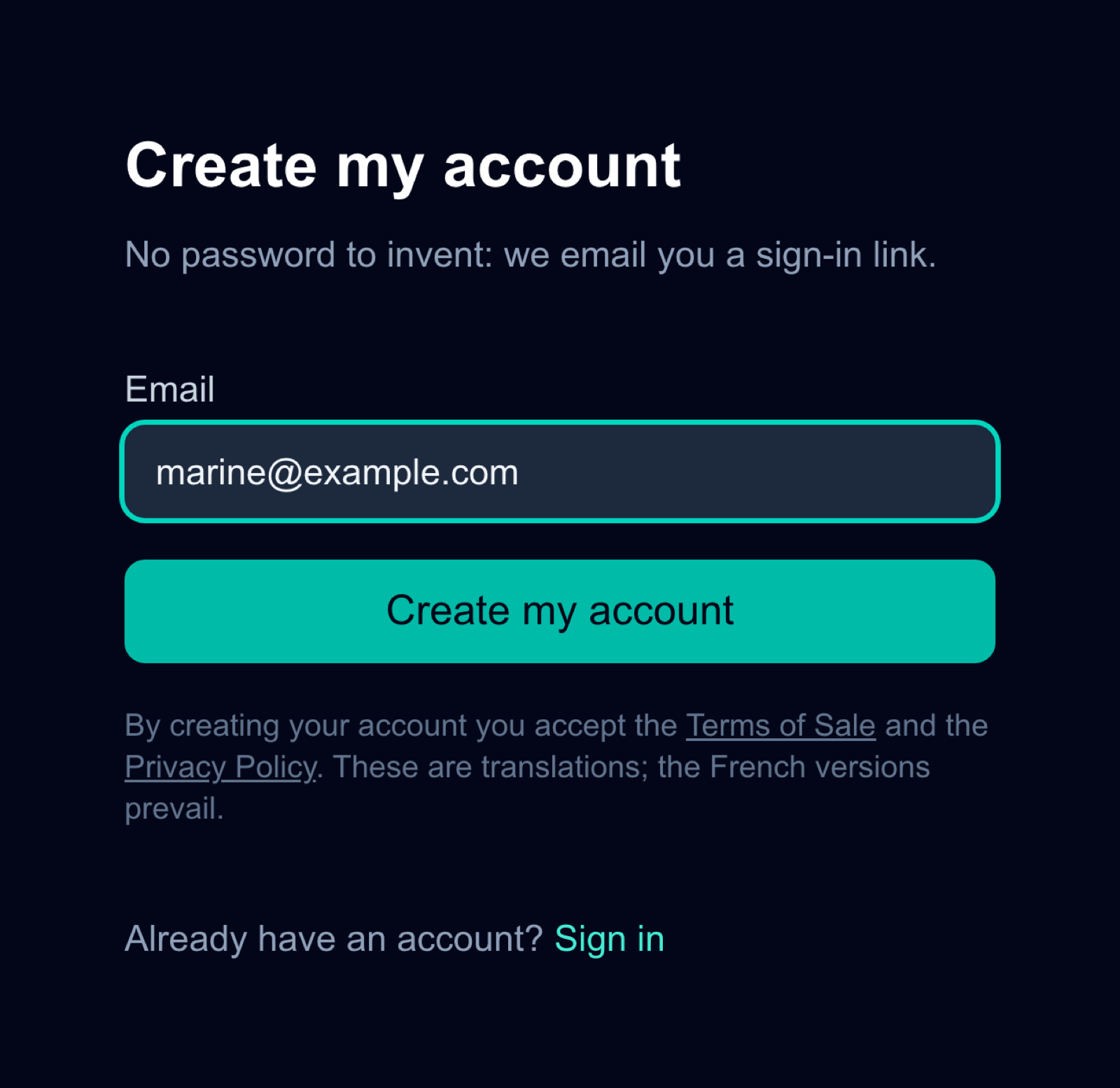
There is no password to invent. You give an email address, we send a sign-in link, you click it. The same door works for signing up and for coming back later.
Where: kitedeck.fr/inscription — or “Create my account” in the header of this site.
- Type your email address, then submit.
- Open your mailbox. The message arrives within a minute; if it does not, look in the spam folder before trying again.
- Click the link. It signs you in and takes you straight to the next step.
Because the mailbox is the key to the account, step 3 is not optional.
Name your organisation
1 minute
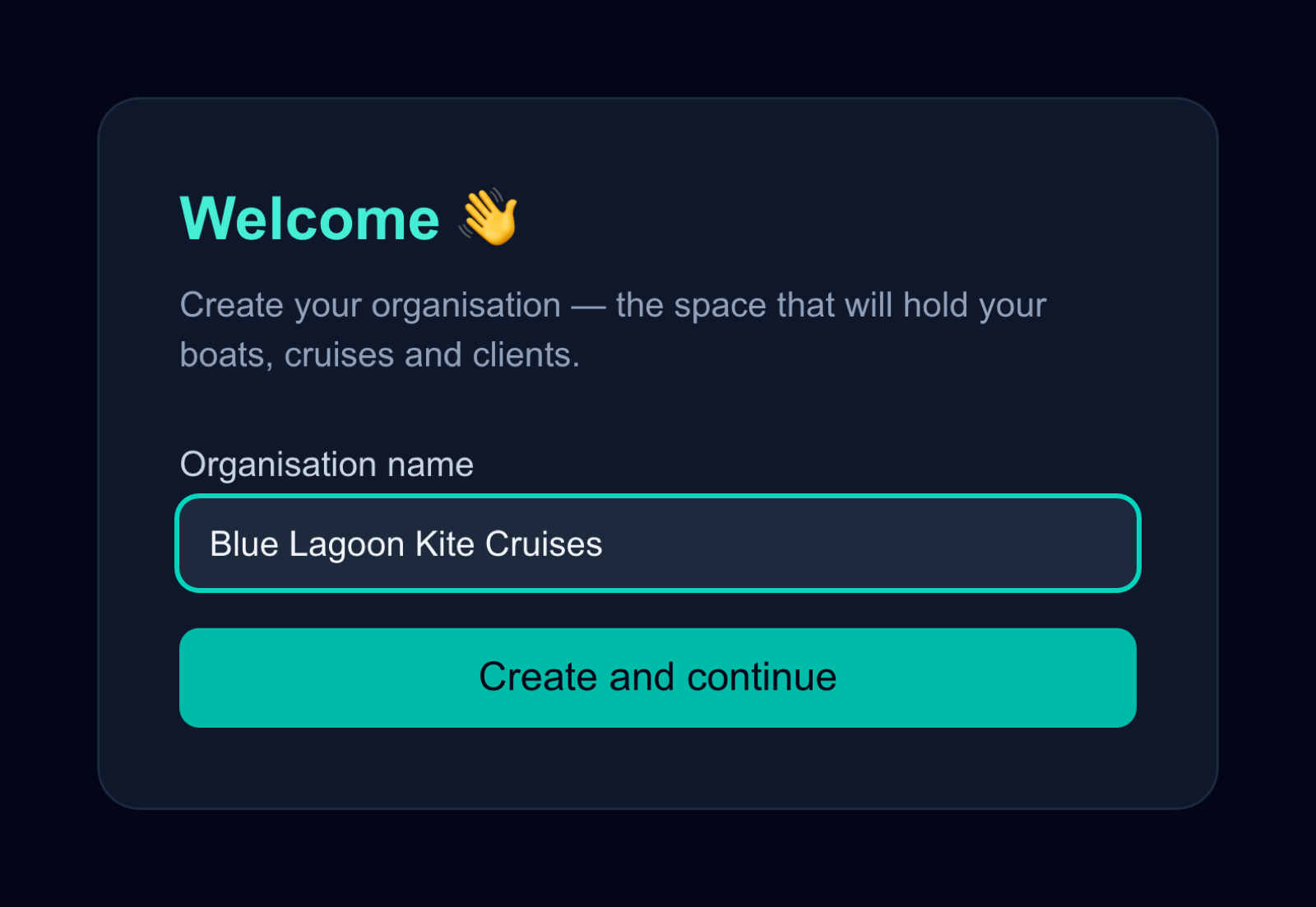
The organisation is the space that holds your boats, cruises and clients. Everything you create from now on belongs to it, and colleagues you invite later join it.
Where: Shown automatically after your first sign-in — screen “Welcome”.
Fill in “Organisation name” — your trading name, the one your clients know — and click “Create and continue”. You land on your home page, empty for now: the next section shows what is on it.
Turn on two-factor authentication
5 minutes
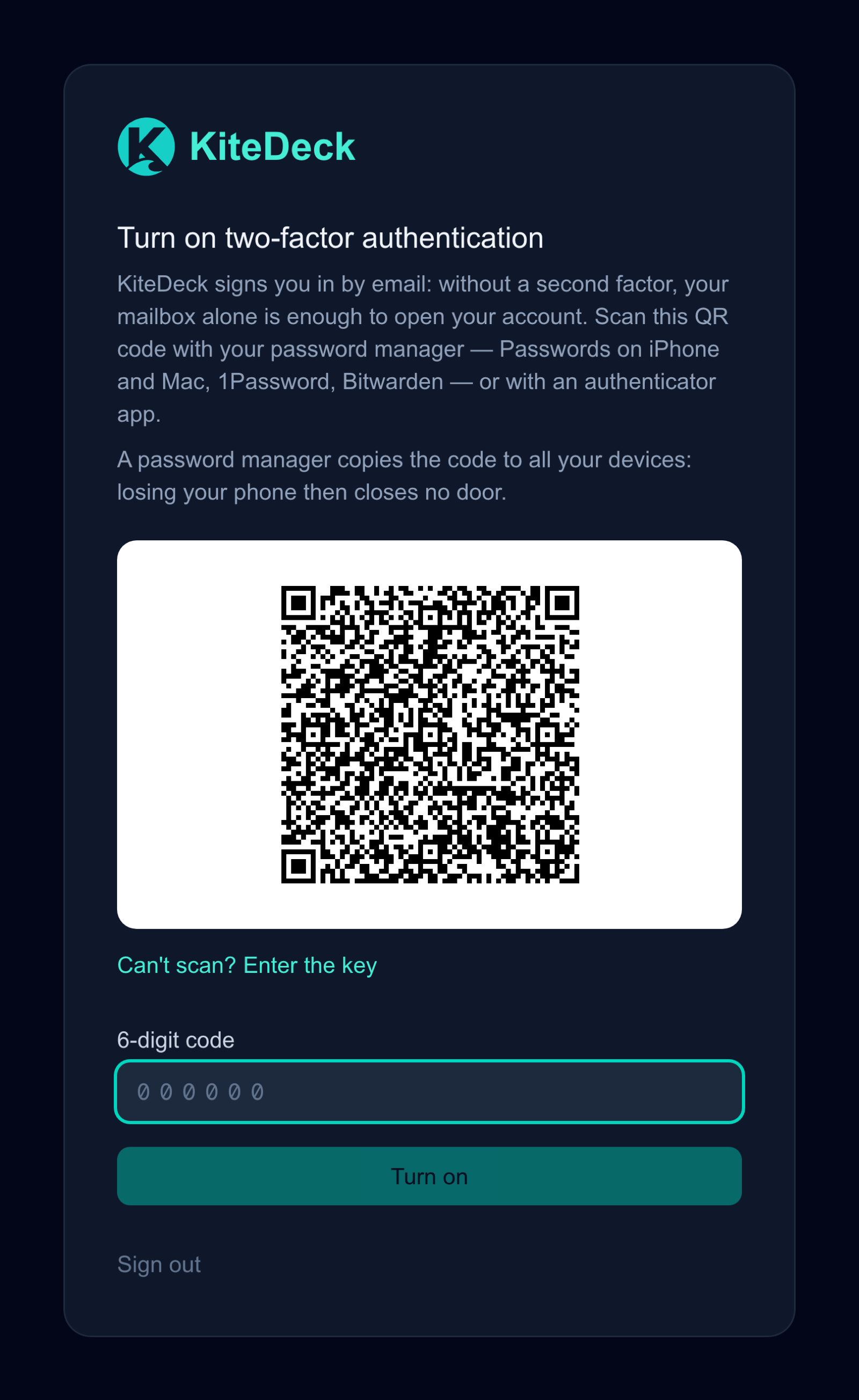
Signing in is passwordless, which means whoever opens your mailbox opens your account. A second factor is the only thing standing in the way. KiteDeck therefore requires it: until it is on, every screen sends you back here.
Where: kitedeck.fr/securite — screen “Two-factor authentication”.
- Open your authenticator app and scan the QR code shown on screen.
- Type the six-digit code it gives you, and confirm.
- From then on, signing in asks for that code after the email link.
Do it twice. The screen offers “Add a second enrolment”: a second device, or a password manager that syncs the code across your machines. If you lose a single enrolment, only an administrator can reopen the account — that is a support email and a wait, on a day you will not have chosen.
Pick your interface language
1 minute
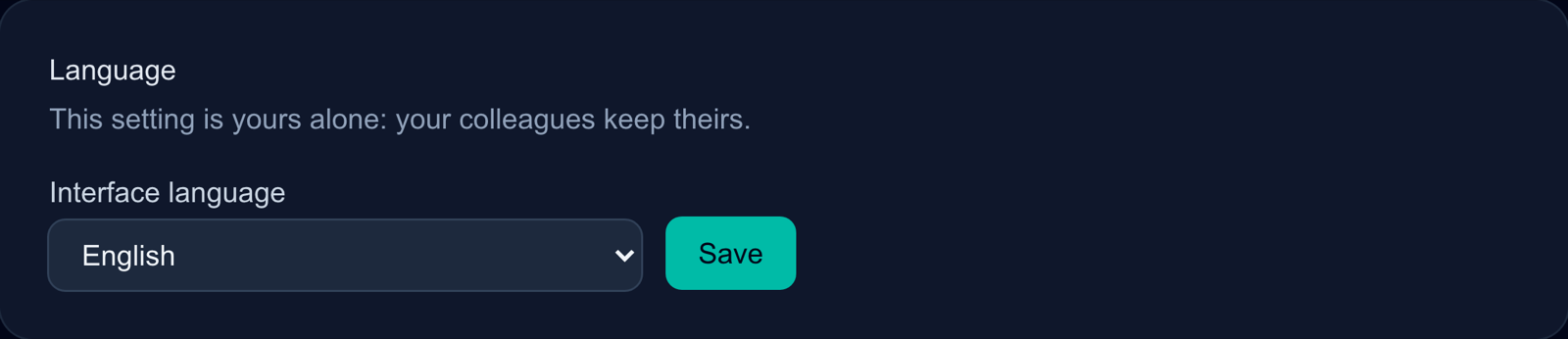
The back-office speaks 8 languages. The setting is yours alone: a colleague in the same organisation keeps theirs, and neither choice touches what your clients see.
Where: “Settings” → section “Language” → “Interface language”.
Leave it on “Match my browser” if you would rather it follow your machine. Pick a language explicitly if your browser is in one language and your working day in another.
Find your way around
Your home page opens on a banner with a greeting, your organisation’s name and a search bar. Below it, “Getting started” lists what is left to set up and ticks each item off as you do it: Stripe, your sending domain, a destination, a boat, a cruise, the storefront, a first booking and the reminders. Then “Your season”: what is booked, collected and still due, and the year month by month.
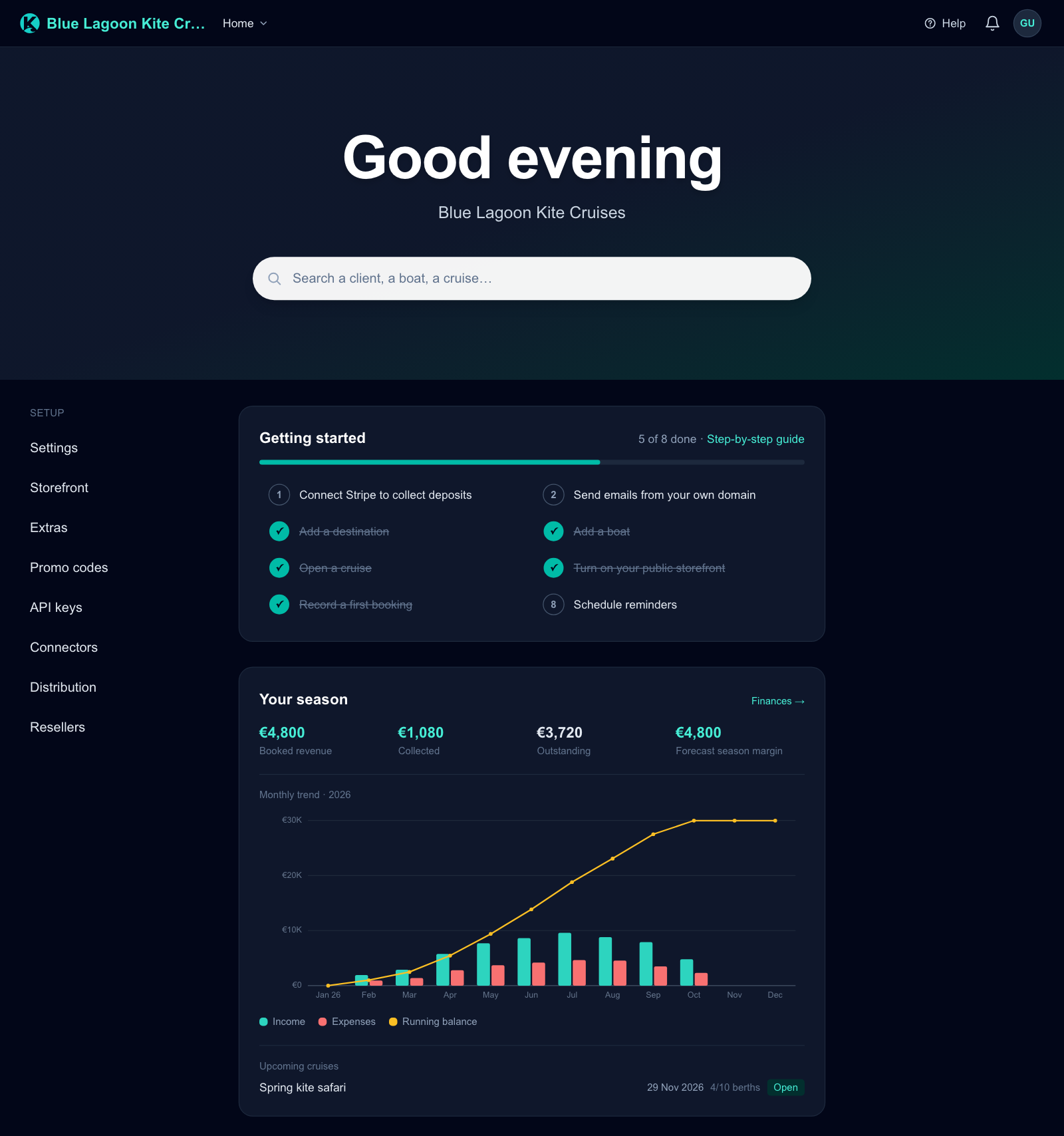
The bar at the top of every other page holds the rest:
- “Back”, top left, returns to the page you came from.
- The “Home” menu, next to your logo, lists every section; “Setup” groups the settings.
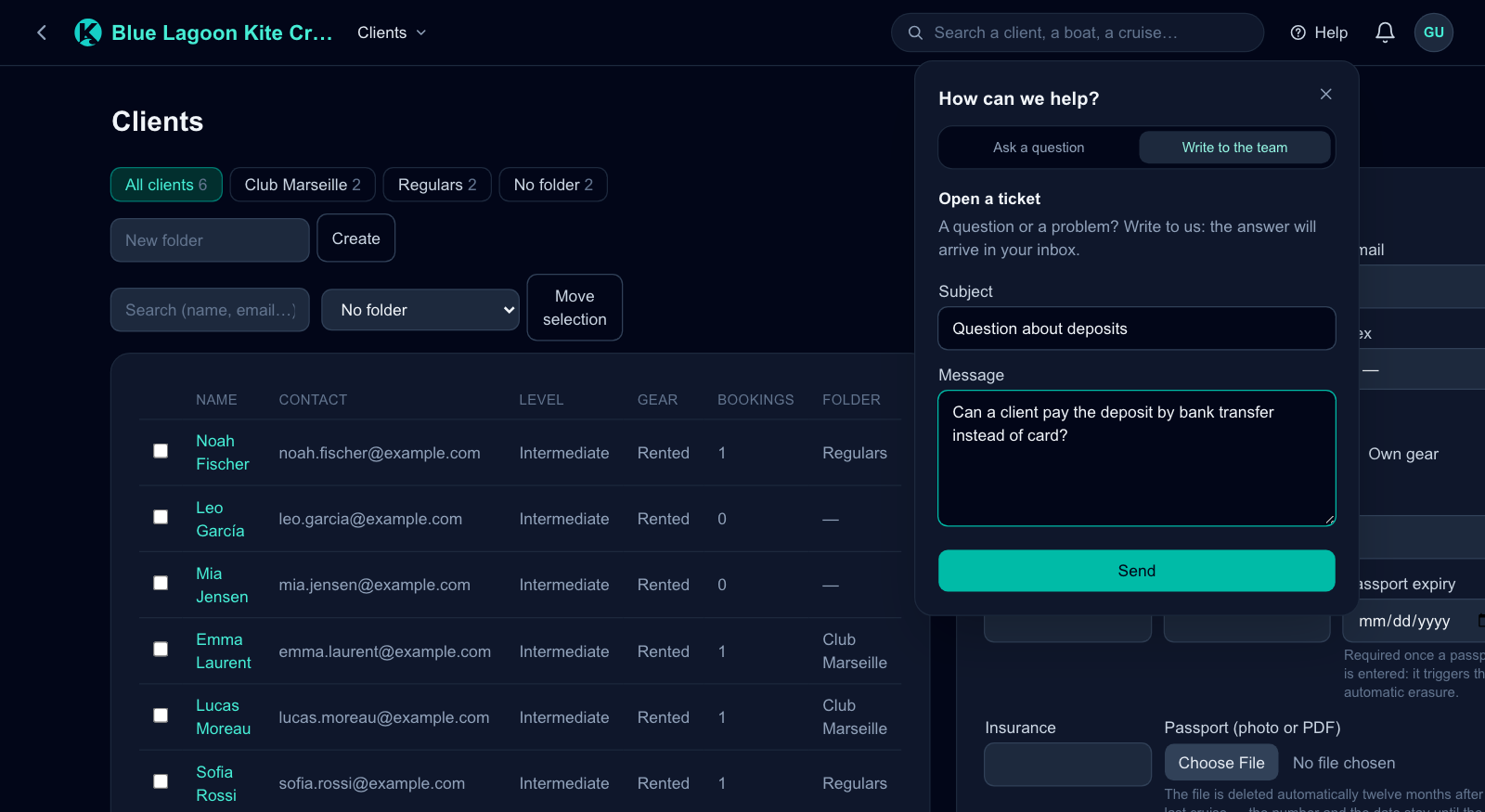
- The search finds a section by name, and in your data: a client by name, email or phone number (typed with or without spaces or country code), a boat by name or model, a destination, a cruise by title — or by its boat or destination — and a client’s bookings.
- “Help”, top right, opens the help panel. Under “Ask a question”, an assistant answers questions about KiteDeck and offers a button to the right page; it does not see your data. Under “Write to the team”, a ticket — a subject, a message — reaches us with the page you were on, and the answer comes to your email address. Closing the panel by mistake keeps what you typed.
Add your logo and banner
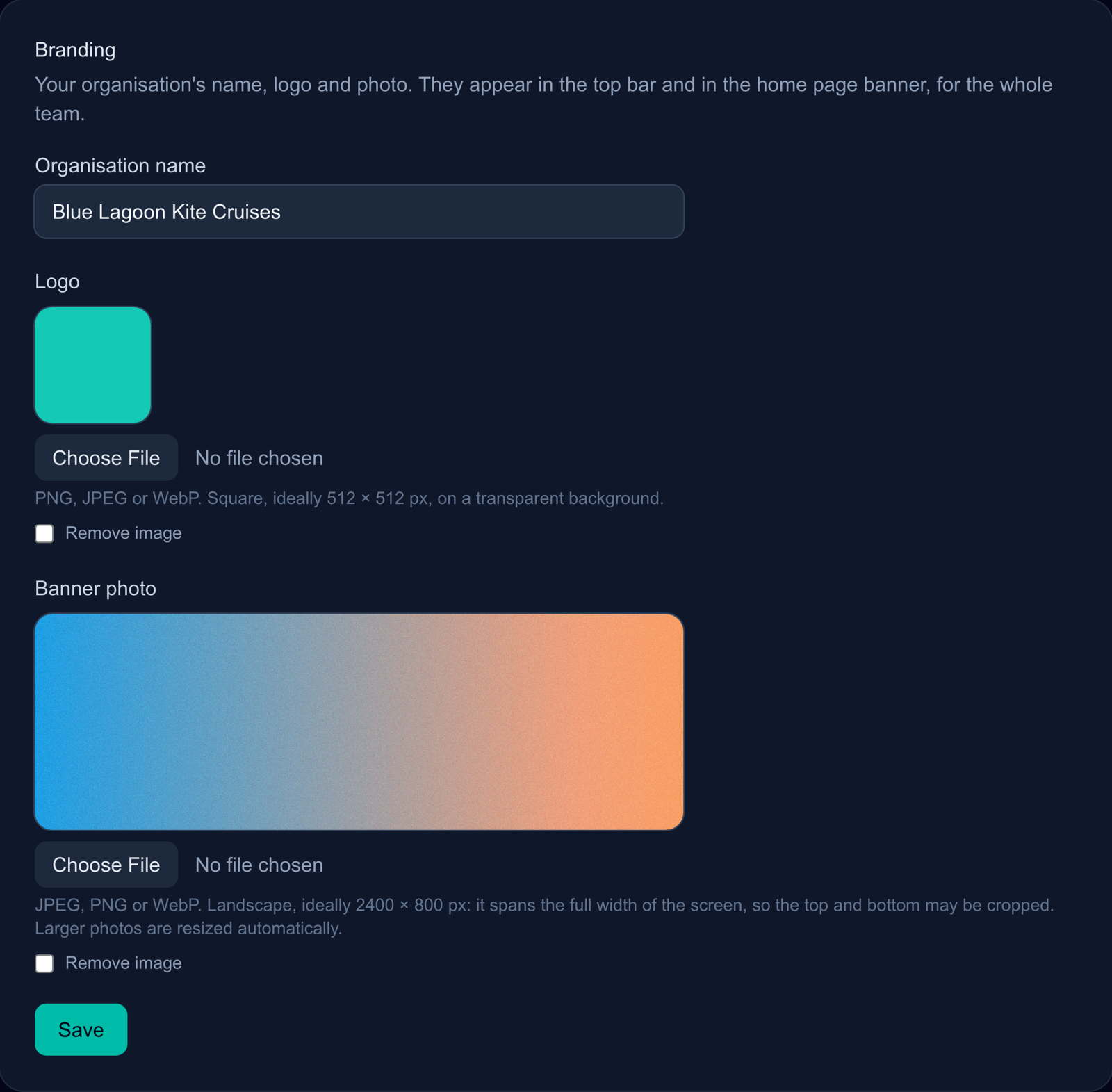
Optional, and it takes two minutes: your logo replaces KiteDeck’s in the top bar, next to your organisation’s name, and your photo fills the home page banner — for the whole team.
Where: “Settings” → section “Branding”.
- “Logo” — PNG, JPEG or WebP, square, ideally 512 × 512 px on a transparent background.
- “Banner photo” — JPEG, PNG or WebP, landscape, ideally 2400 × 800 px. It spans the full width of the screen, so the top and bottom may be cropped.
Larger photos are resized in your browser before they are sent; you do not need to prepare them. iPhone HEIC photos are not accepted: export them as JPEG first. Tick “Remove image” and save to go back to the default.
Part 2
Basic setup
Steps 5 to 10: payments, email and your public page, then the destination, boat and cruise that make up your first departure.
Connect Stripe and set your deposit
15 minutes
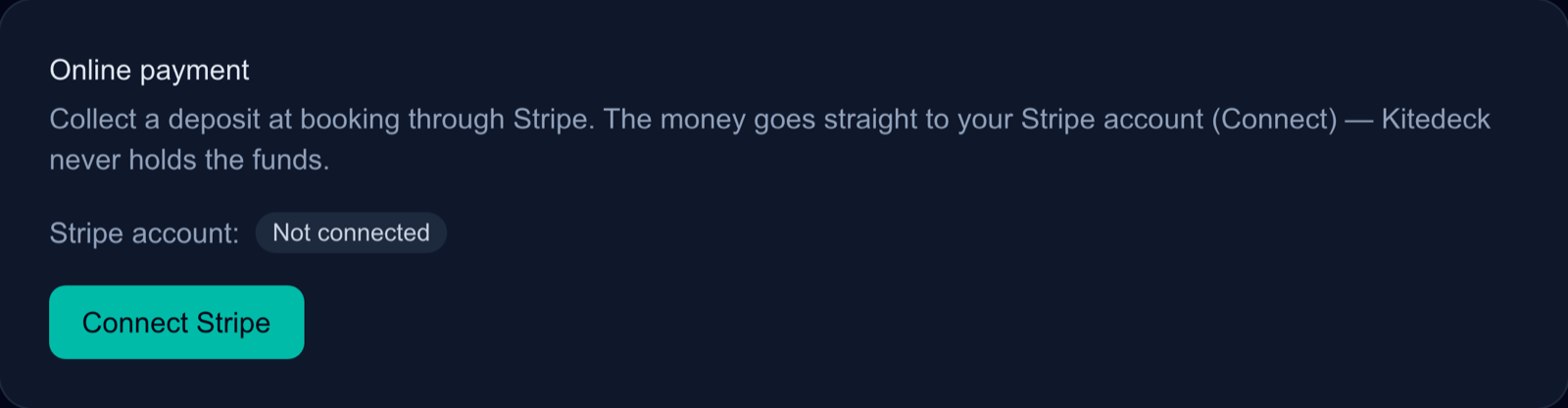
Deposits are collected through Stripe and land on your Stripe account. KiteDeck never holds your money — it opens the payment and records it. Stripe’s own fees stay yours.
Where: “Settings” → section “Online payment”.
Selling outside the euro zone? Check “Organisation currency” first, a little lower on the same page (EUR, USD, GBP, CHF). Every price and deposit is in that currency, and it can no longer change once a booking exists.
- Click “Connect Stripe”. You are handed over to Stripe, which asks for your company details, an identity document and a bank account.
- Come back to KiteDeck. The screen reads “Connected — collecting payments”, or “Verification under way” while Stripe checks your file. That check is on Stripe’s side and can take a day; you can keep setting up meanwhile.
- Set “Deposit percentage” — the share of the total a client pays to confirm. Save it.
- Optionally, tick “Charge the balance automatically to the deposit card” and choose how many days before departure. The card used for the deposit is then kept by Stripe, the client is told so under the payment button, and the balance is charged on that day. One attempt only: if the card is declined, the client gets an email with a link to pay, and you get a notification.
Leaving the deposit at 0 means no online payment at all: a booking is then held as an option, and the money is settled between you and the client by other means.
Send from your own domain
10 minutes, plus DNS propagation
Confirmations, reminders and campaigns leave better from your own address than from a shared one: fewer spam folders, and a sender your clients recognise. Without this step, sending falls back to the default address and still works — it just travels worse.
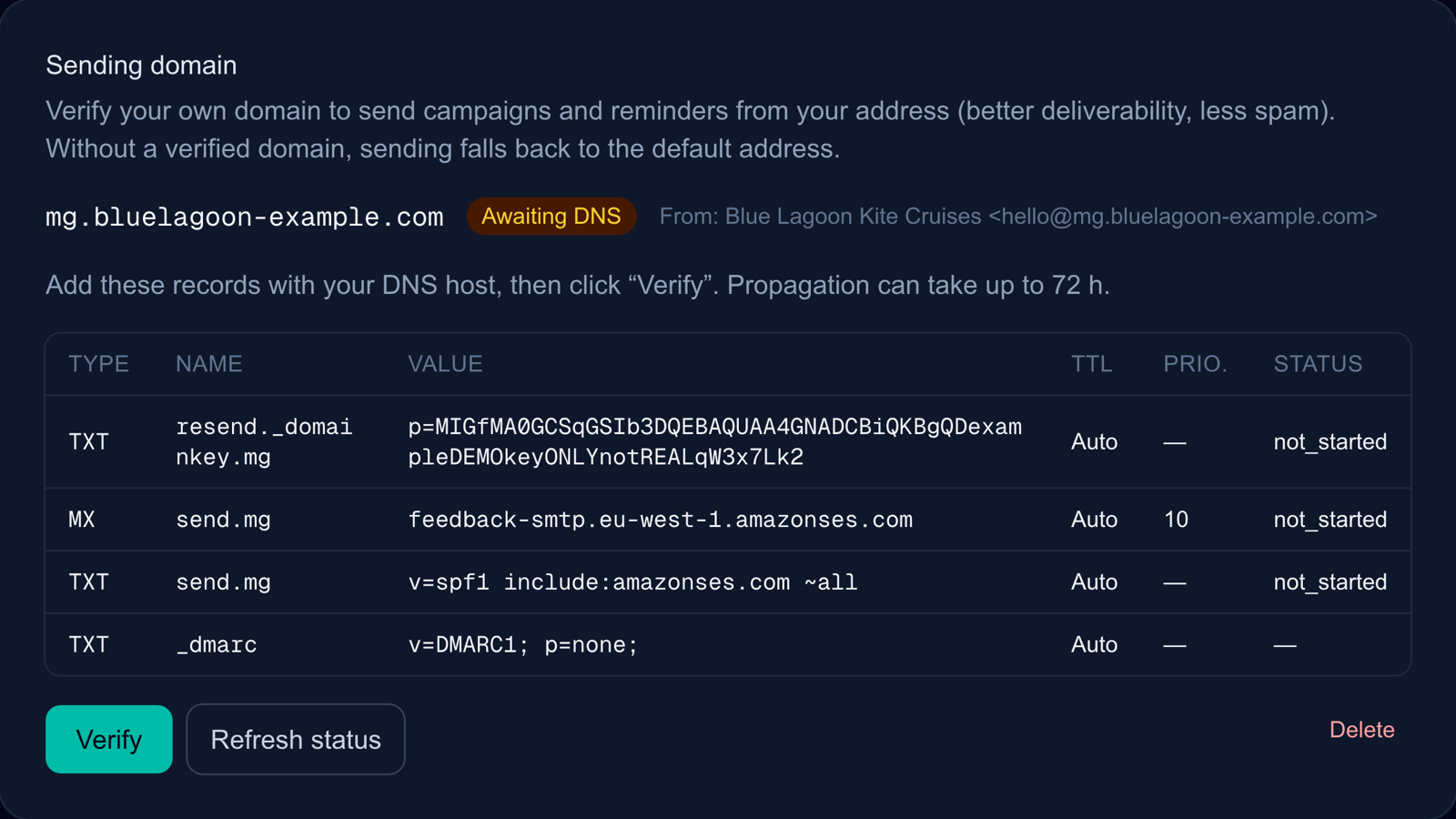
Where: “Settings” → section “Sending domain”.
- Enter a subdomain you reserve for sending — something like
mg.example.com, not your main domain. Add a sender name if you want one, pick the region, then “Add domain”. - KiteDeck shows a table of DNS records. Copy them into your DNS host exactly as shown, one line per record.
- Come back and click “Refresh status”. Propagation can take up to 72 hours, so a first attempt that reports nothing is normal.
Turn on your public storefront
3 minutes
Your storefront is a page with no account and no login, listing the cruises you have opened. It is the link you drop in an Instagram bio, a newsletter or a direct message — clients book on it by themselves.
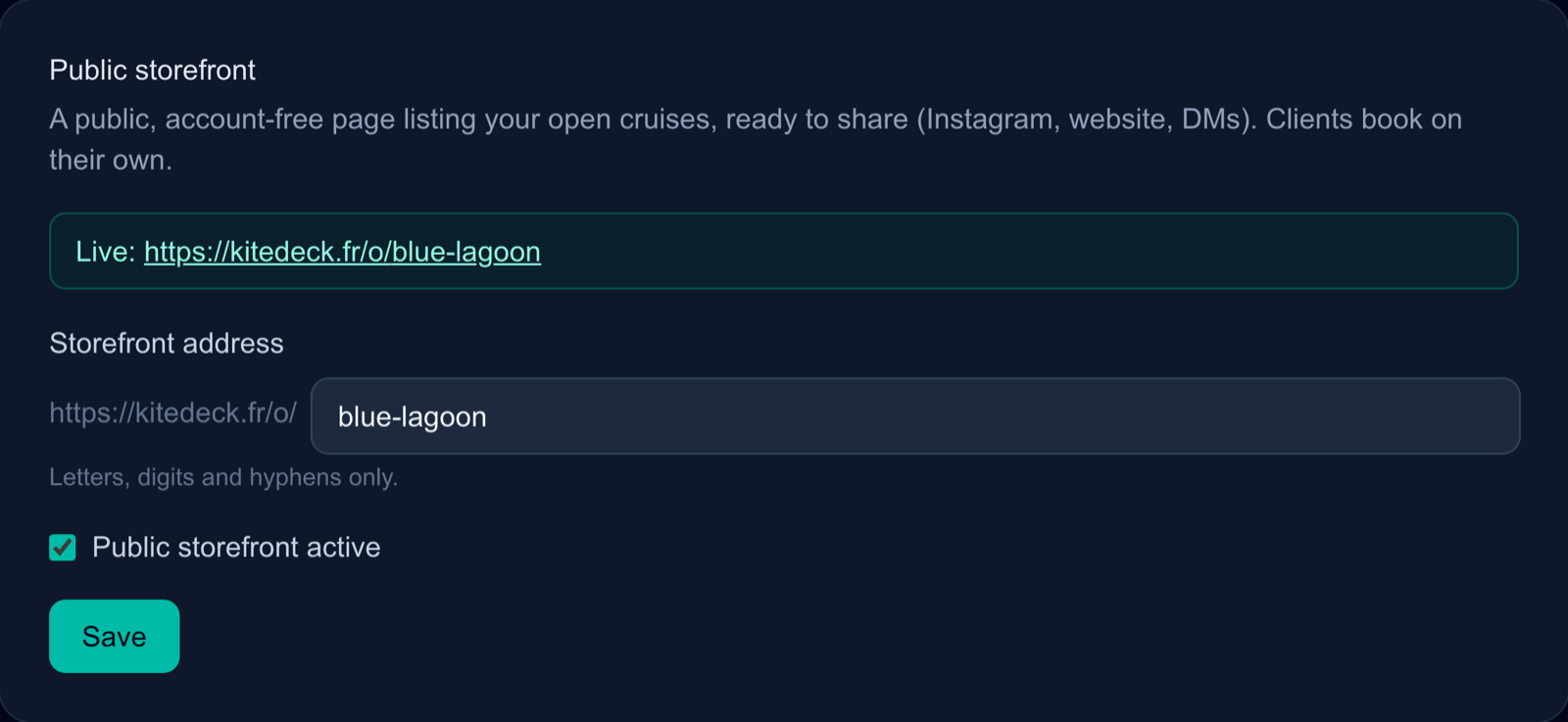
Where: “Settings” → section “Public storefront”.
- Choose your “Storefront address”: letters, digits and hyphens only. It becomes
kitedeck.fr/o/your-addressand your clients will see it, so keep it short and readable. - Tick “Public storefront active” and save. The page is live straight away — empty until step 10 opens a cruise.
The storefront and the booking tunnel follow the traveller’s own language, not yours: a German visitor reads German, and the booking confirmation leaves in the language they used.
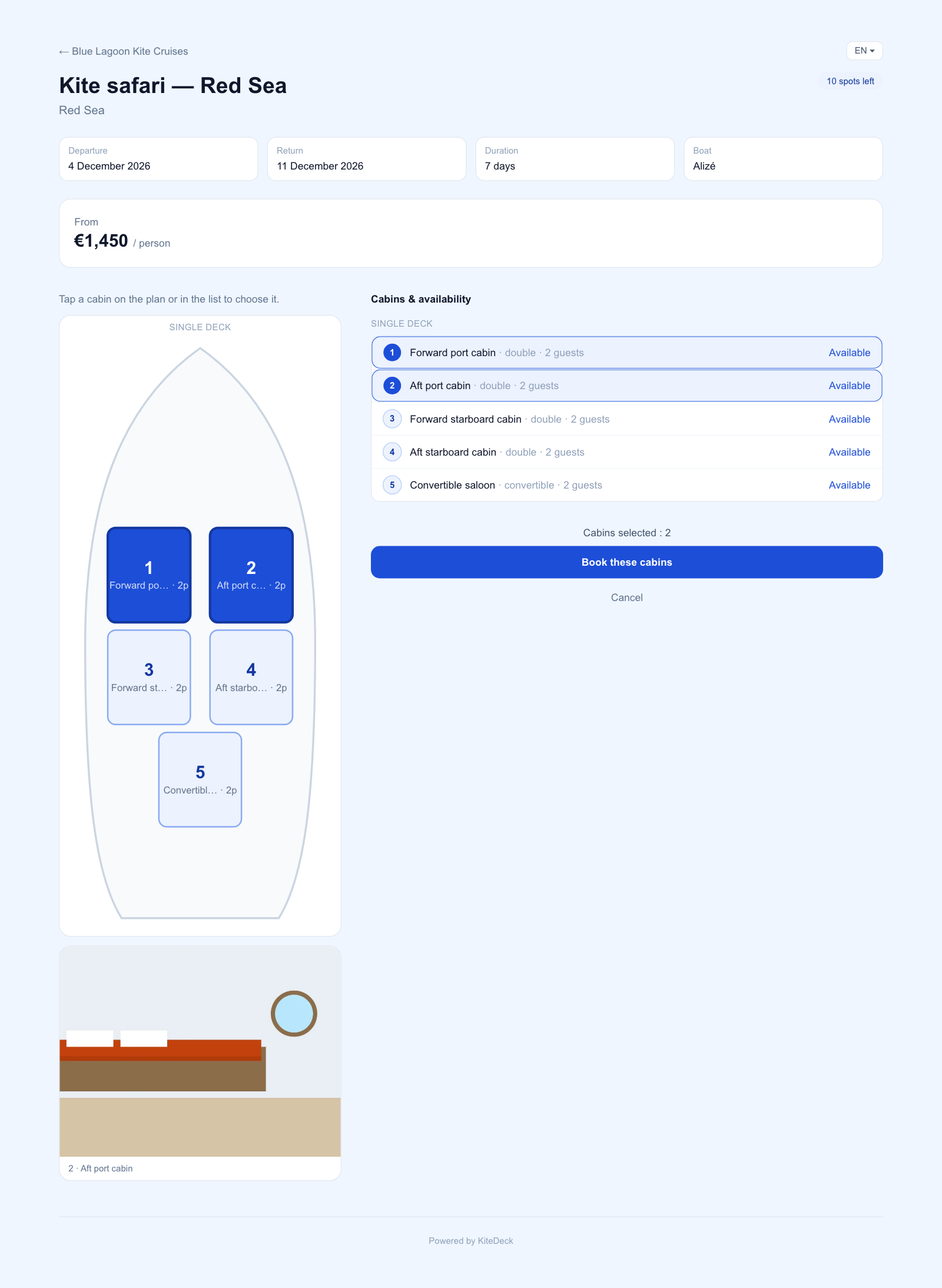
On a cruise page, the client picks a cabin on the boat plan — or several at once with “Book several cabins”, choosing how many guests sleep in each. One deposit covers them all, and each cabin shows up in your bookings under the same client, one line per guest. From the link in their email, a client can release a cabin on their own while it is still an option.
Each guest fills in a short kiter profile while booking — sex, level, height, weight and own gear or rental. It is optional unless you tick “Kiter profile required” in this same section. Shared cabins are never mixed between strangers: a traveller cannot join a cabin already taken by someone of the other sex who booked separately, and you are notified with their contact to suggest another cabin. Bookings you enter yourself are never blocked; the cruise page simply warns you about a mixed cabin.
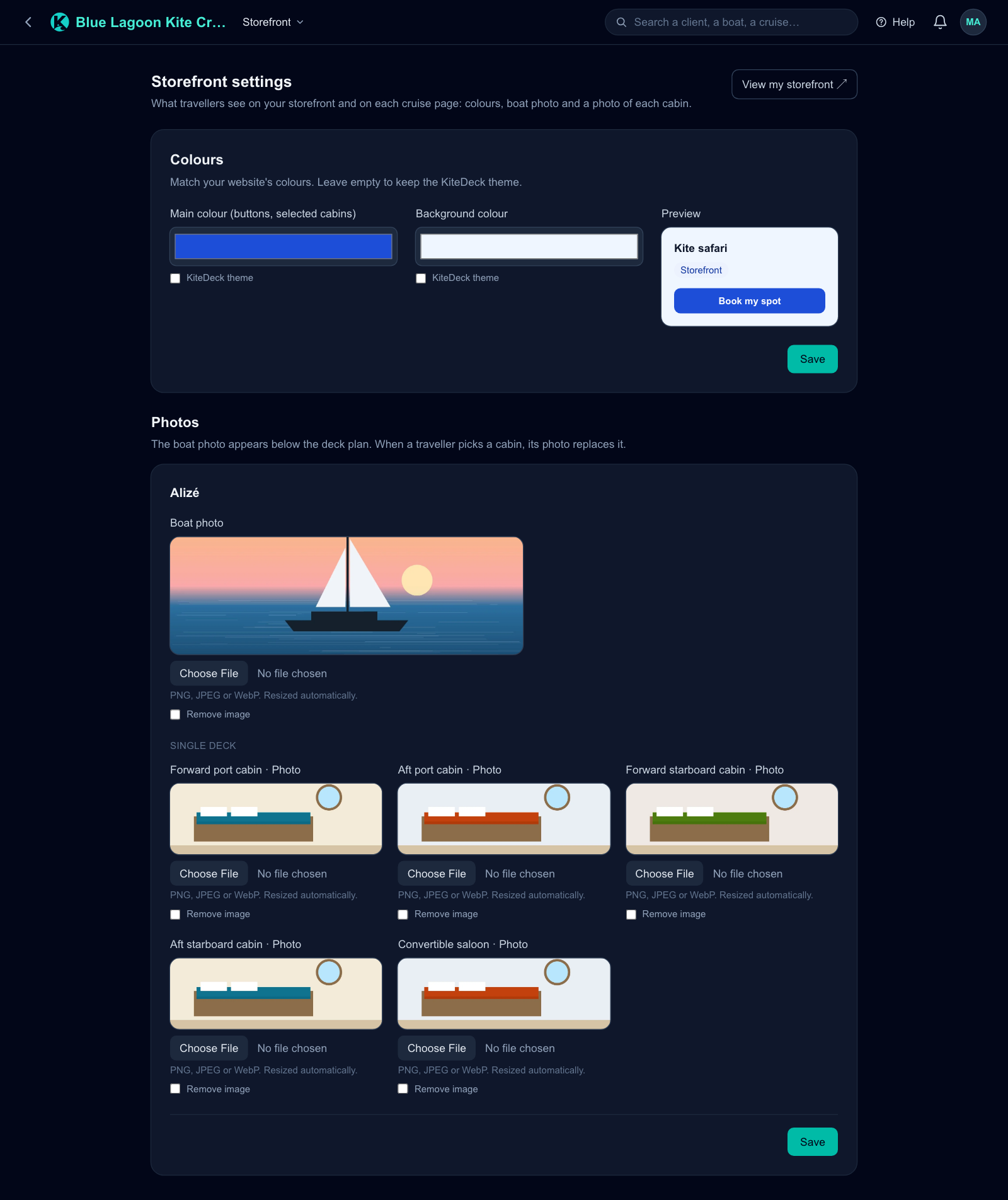
To match your own website, open “Storefront” in the menu: colours, a photo of the boat and one per cabin.
Add a destination
3 minutes
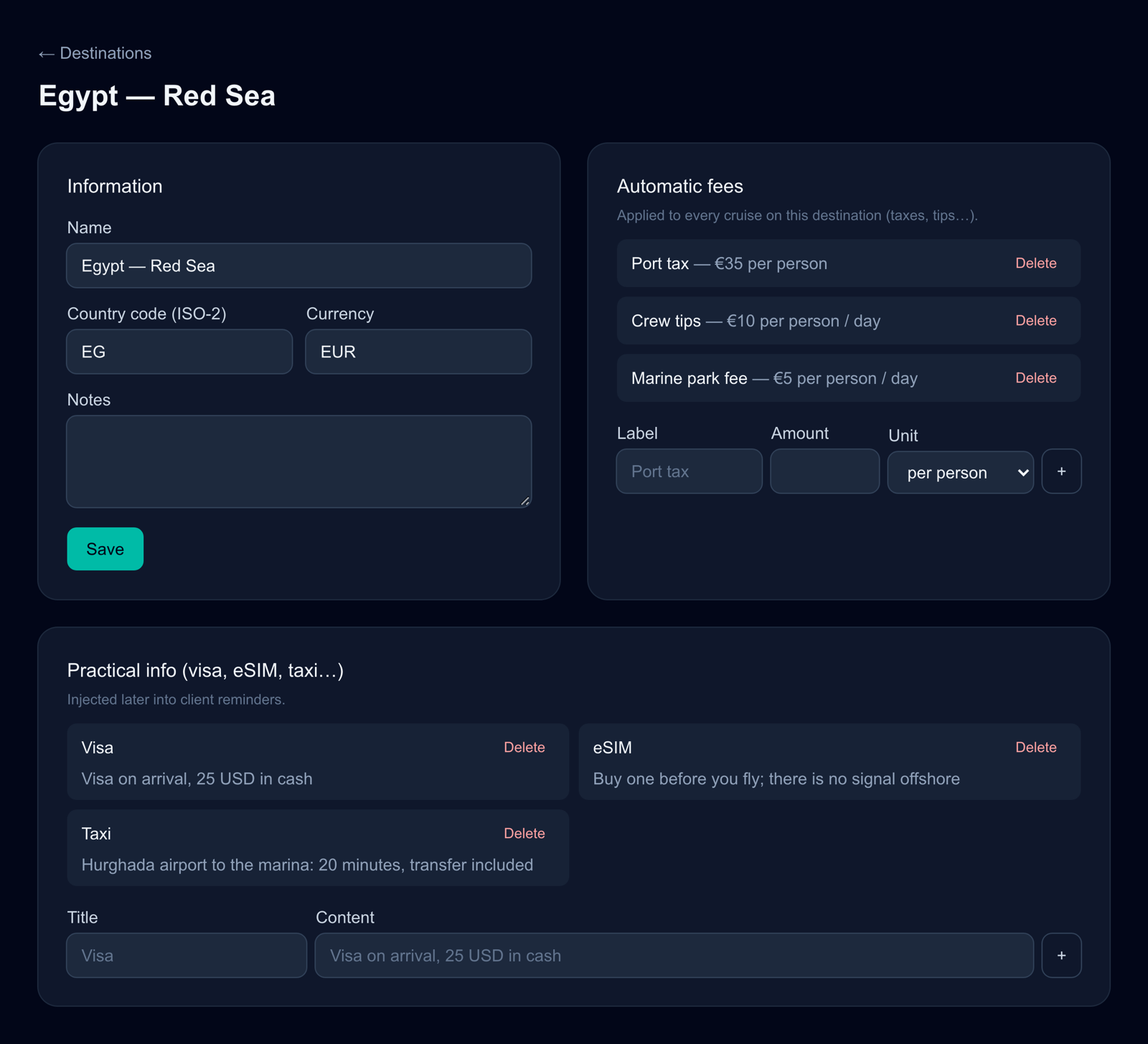
A destination is where you sail, and it carries what is owed there. A cruise cannot exist without one.
Where: “Destinations” → “New destination”.
Name it the way a client would say it — Egypt — Red Sea — then open it to fill in two things that will save you typing later:
- “Automatic fees”: port taxes, tips, island fees. Each one has a unit — per person, per person and per day, per cruise, per day — and is applied to every cruise on this destination.
- “Practical info (visa, eSIM, taxi…)” — these are injected later into the reminders your clients receive before departure, so they are written once and never again.
Add your boat
15 minutes
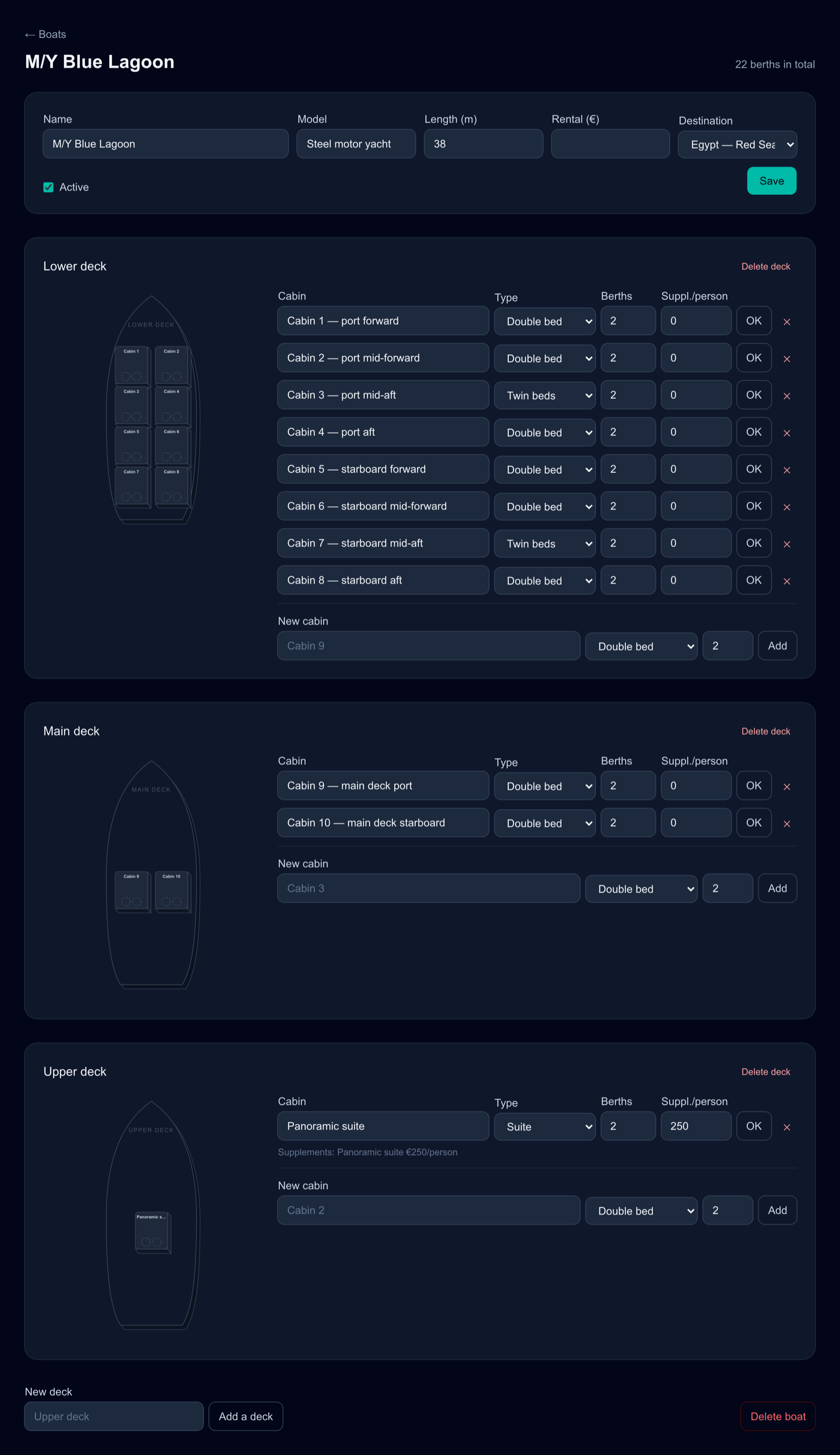
The boat is the piece that makes the rest possible: its cabins are the stock you sell, and the plan drawn here is the plan your clients click on when they book. A berth taken is a berth gone — it cannot be sold twice.
Where: “Boats” → “New boat”.
Start from one of the three options:
- “38 m motor yacht (Red Sea type — 11 cabins)” — three decks, the usual Red Sea safari layout.
- “Catamaran (4 cabins + convertible saloon)”.
- “Blank boat (manual setup)” — for anything that resembles neither.
A template is a starting point, not a cage: open the boat and rename, add or delete decks and cabins until the screen matches the boat you actually sail. For each cabin, set its type — double bed, twin beds, suite, sofa bed, single — its number of berths, and a per-person supplement if that cabin is worth more.
The plan draws cabins from the bow down, two side by side, in the order of the list. Use the ▲ / ▼ arrows next to a cabin to move it towards the bow or the stern, and its “Position on plan” menu to pin it to “Port” or “Starboard”, or give it a row of its own with “Centre” — the owner’s cabin at the bow, for instance. “Auto” keeps the default placement.
Open your first cruise
5 minutes
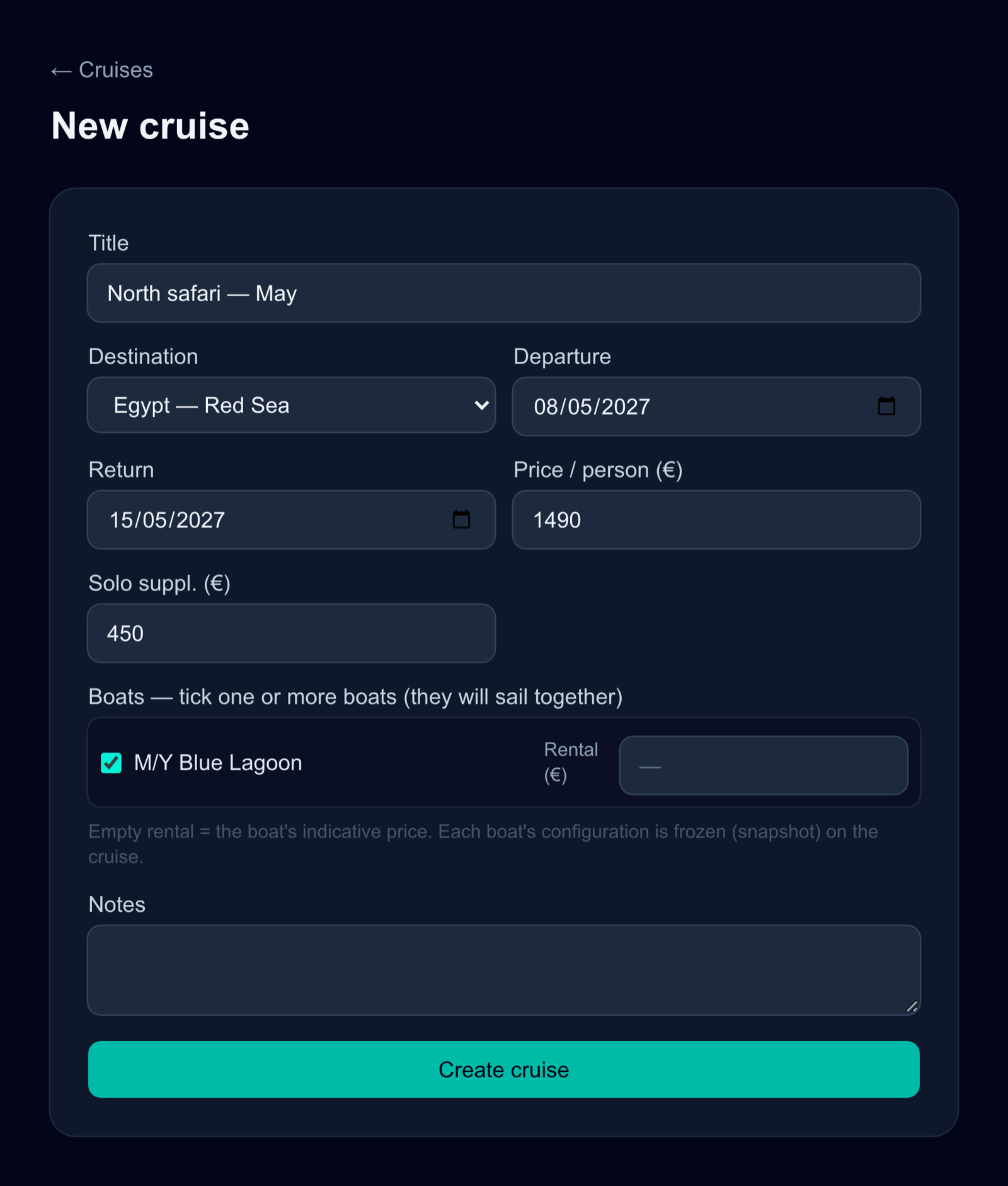
A cruise is a departure: one destination, a boat, dates, a price. Creating it is where the previous two steps pay off — the form needs at least one destination and one active boat.
Where: “Cruises” → “+ New cruise”.
- “Title” — what a client reads first: North safari — April.
- “Departure” and “Return”.
- “Price / person (€)”, and a “Solo suppl. (€)” if travelling alone in a cabin costs more.
- The boats: tick one or several — several boats means they sail together, and their cabins are sold as one pool.
Each boat’s configuration is frozen on the cruise the moment you create it. Refitting the boat next winter will not rewrite a departure already on sale.
Part 3
Advanced setup
Once a cruise is open: every sales channel, and the reminders and campaigns that follow up after the booking.
Put it in front of clients
10 minutes
The cruise exists; now it has to be reachable. There are four ways in, and they all sell from the same stock — a berth booked through an agency disappears from your own page at the same instant.
- Your storefront.
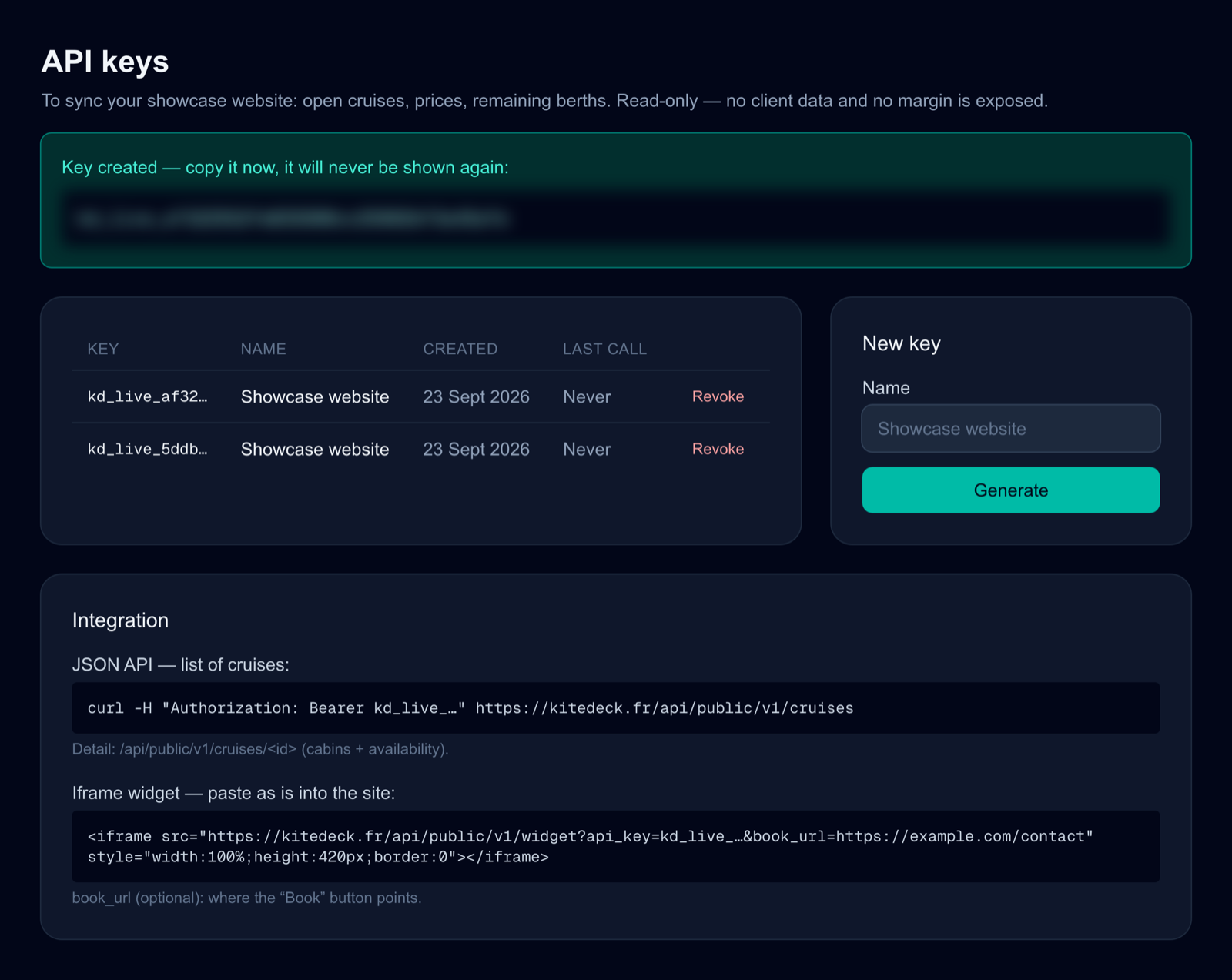
kitedeck.fr/o/your-address, from step 7. Nothing more to do: an open cruise appears on it. - A widget on your own website. Go to “Setup” → “API keys”, click “Generate”, and copy the key the moment it appears — it is shown once and never again. The same screen then displays an iframe snippet to paste as is into your site, and the address of the read-only JSON API for whoever builds it. Neither exposes client data or your margin.
- Aggregators and OTAs. “Setup” → “Distribution” → “Enable” (an active API key is required). Bookings pushed by a partner arrive marked as to confirm: you keep the final say.
- Commissioned resellers. An agency or a partner that sells berths for you: “Setup” → “Resellers”, add it with its commission rate, which you can change at any time. It gets a tracking link to your storefront, and you can also hand it an API key of its own. Every booking that comes through either one is credited to it, with the commission worked out automatically from the booking total. A seat quota per cruise caps how much it can sell. The rate is locked on each booking when it is made, and a cancelled booking owes nothing. What you owe each reseller is shown in “Finances”.
- Promo codes. “Promo codes” → “New code”. A discount, a scope — one cruise or the whole organisation — and a validity window. The discount applies to the participant’s total at the time of booking.
Let the follow-ups run
10 minutes
Between a booking and a departure there are balances to collect, passports to ask for and a boarding time to confirm. That is the part that eats an organiser’s evenings, and the part KiteDeck was built to take over.
Where: “Reminders” and “Campaigns”.
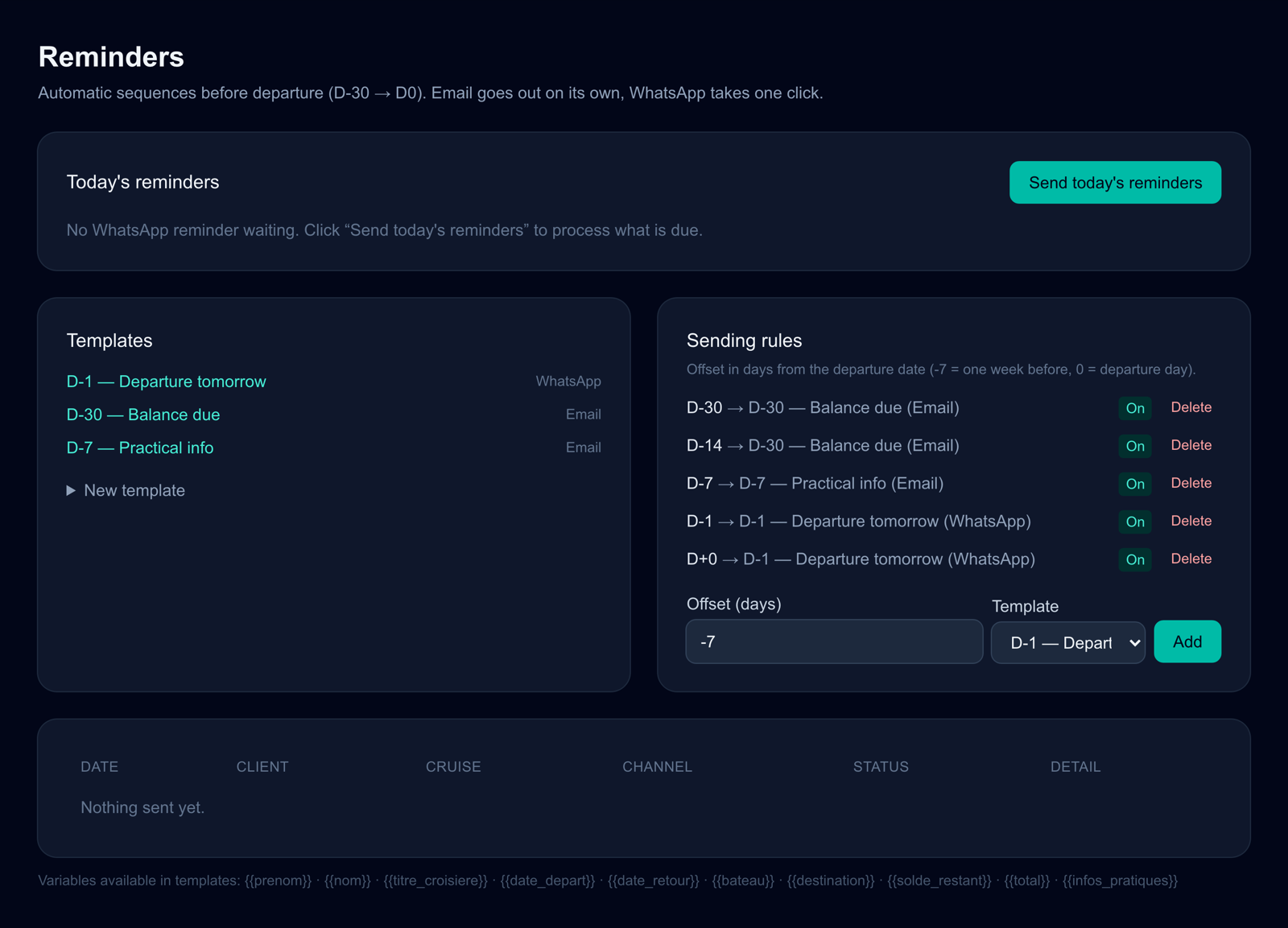
- Reminders are sequences that run on their own from D-30 to departure day. If you have no templates yet, click “Create the default templates” and edit them to sound like you. Emails leave by themselves; WhatsApp messages wait for one click, under “Today’s reminders”.
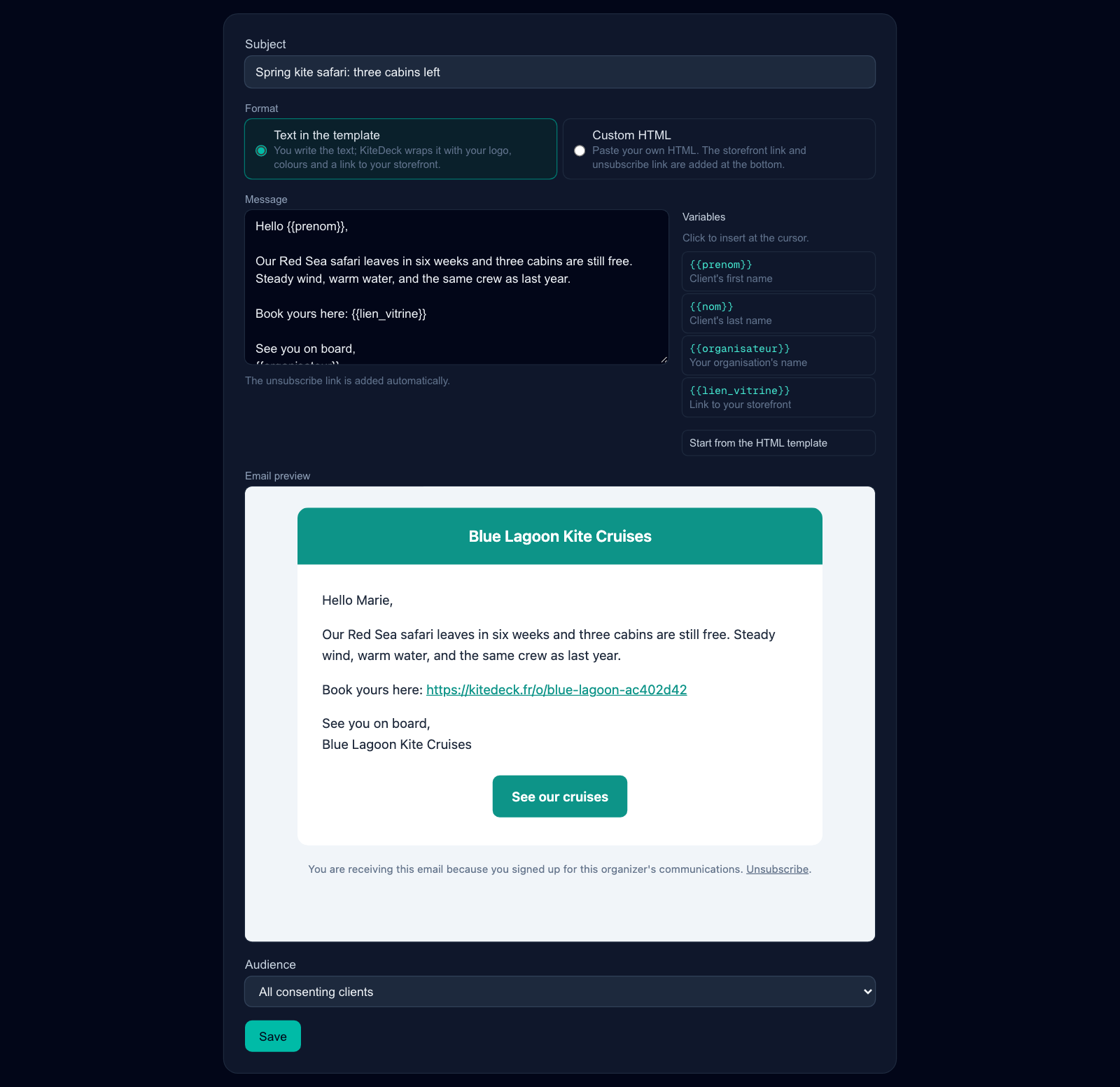
- Campaigns are marketing emails to clients who consented. Write a subject and a message; the “Variables” list next to it inserts
{{prenom}},{{organisateur}}or{{lien_vitrine}}where your cursor is, and each one is replaced for every recipient. The unsubscribe link is added for you, and it works: a client who unsubscribes stops receiving campaigns without you having to remember it. - How it looks. With “Text in the template”, KiteDeck wraps your text in an email with your logo, your name and a button to your storefront. Set the colours and a logo of their own under “Email template”, at the top of the screen; an empty field reuses your storefront’s. Prefer your own design? Pick “Custom HTML” and paste it, or start from “Start from the HTML template”. Scripts are stripped, and the storefront button and unsubscribe link are still added at the bottom. The “Email preview” shows the real email.
- Segments narrow the audience: by level, by client or prospect, by destination visited, by past or upcoming cruise, or by client folder. Each list takes several values — “Select all” ticks them all — and a client matches if they fit any of them. Several rules still combine: all of them must match.
Send yourself a test first. It renders the real template with example values, so you read what your client will read.
You are set up
Your first cruise is on sale and the follow-ups are running. These screens are worth knowing from here:
- “Home” — “Your season” charts the year month by month: income, expenses and what is left. Below it, the cruises coming up and what needs an answer. Notifications live behind the bell at the top of every page.
- “Clients” — sort clients into folders (a club, your regulars), filter the list by folder, and move several clients at once with “Move selection”.
- “Finances” — income and expenses that are not bookings: port taxes, tips, repairs. Online payments and refunds write themselves; KiteDeck’s commission invoices appear as expenses on their own, with a link to the invoice. Charts show where the money comes from and where it goes, over the last 12 months, a year or since the beginning, and “Export CSV” downloads exactly what is on screen. Each entry takes a “Payment method” and a “Receipt”: a photo of the ticket or a PDF, attached when you add it or later with “Attach”.
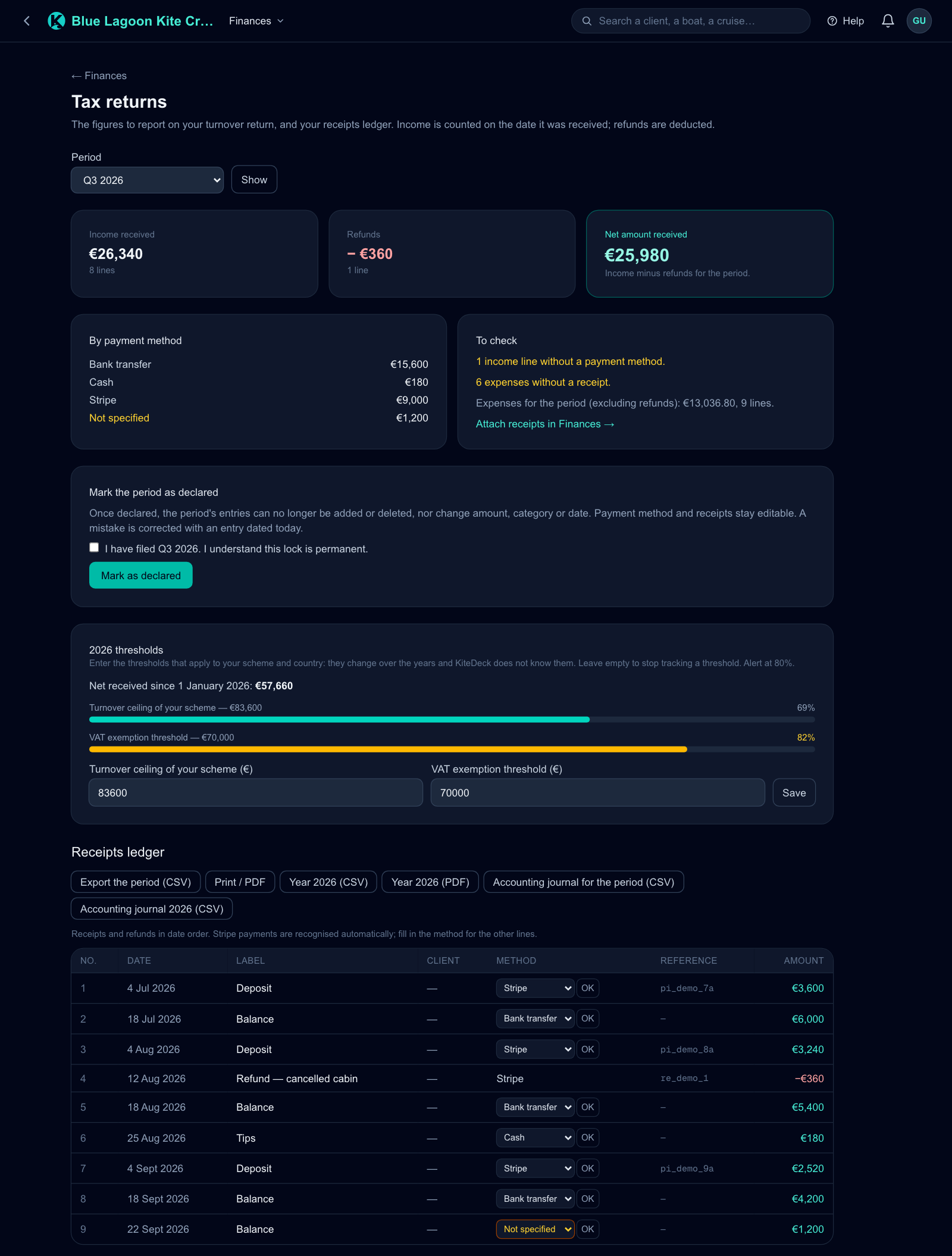
- “Tax returns” (button at the top of Finances) — the figures for your turnover return, for a month or a quarter: “Income received”, “Refunds” and the “Net amount received” to report, split by payment method. The “Receipts ledger” lists every receipt in date order, as CSV or ready to print or save as PDF; the accounting journal (CSV) is for your accountant. Enter the thresholds of your scheme under “Turnover ceiling of your scheme” and “VAT exemption threshold” to be warned at 80 %. Once you have filed, the owner can “Mark as declared”: the period’s figures can no longer change.
- “Charters” — a boat chartered for several weeks. Enter the block once and its cost spreads pro rata across the cruises that use it, which is what makes a per-cruise margin honest.
Part 4
Questions & answers
How much does KiteDeck cost?
3 % (excl. VAT; 20 % French VAT is added for organisations based in France) of each payment your clients make online through KiteDeck, deposit or balance — and nothing else. No subscription, no setup fee, no limit on boats or clients: every feature is open to every organisation. Bookings and payments you record by hand (bank transfer, cash) cost nothing.
How is the commission taken?
Payments go straight from your client to your own Stripe account (step 5); KiteDeck never holds the money. Stripe deducts the 3 % (plus VAT in France) on each payment, alongside its own transaction fees, which are yours. Refunding a payment also refunds the commission. Each month you receive an invoice for the commissions of the month before, already settled, also listed with its PDF in Account.
Is there a password?
No. You sign in with a link sent to your email address, then with the code from your authenticator app (step 3). Both are needed, every time a new device signs in.
I lost the phone with my authenticator app. What now?
If your codes live in a password manager (1Password, Bitwarden, Apple Passwords), they are on your other devices too — that is why step 3 recommends one. Otherwise, write to us: the account can only be reopened by an administrator, once your identity has been checked.
How do I find a client or a boat quickly?
Type in the search bar at the top of any page, or in the banner of the home page. A few letters of a name are enough; a phone number works too, whatever way it was typed. Results are grouped: sections, clients, boats, destinations, cruises and bookings.
Can I sort my clients into folders?
Yes. In “Clients”, type a name under “Folders” and create it (a club, your regulars, a group of friends). Each client sits in one folder or in none: pick it on the client record, or tick several clients in the list and use “Move selection”. Deleting a folder keeps its clients. A campaign segment can target a folder too, and still only reaches clients who consented.
Does KiteDeck file my tax return?
No. “Tax returns” prepares the figures from your journal — income received, refunds, the net amount, the receipts ledger — but you file the return yourself, on your tax authority’s website. KiteDeck does not know the rules or the thresholds of your country and scheme: you enter the thresholds, and an accountant should check the accounting journal before using it.
Can I undo “Mark as declared”?
No, and that is the point: once a period is declared, its entries can no longer be added, deleted or changed in amount, category or date, so the figures stay those you filed. Payment methods and receipts can still be completed. A mistake is corrected with a new entry dated today. Only the owner can declare a period, and only once it is over.
Which languages do my clients see?
Their own. Public booking pages follow the traveller’s browser, whatever language you picked for yourself in step 4.
Can I sell in another currency than the euro?
Yes: EUR, USD, GBP, CHF. Pick it in “Settings” → section “Currency” before your first booking — it locks after that. There is no conversion: prices, deposits, fees and exports are all in that one currency, and Stripe collects in it too.
Can I sell gear rental or transfers with a cruise?
Yes, as extras. Create them once in “Extras”, priced per person, per person per day or per booking. Offer them on a cruise from its “Extras” card, with its own price if needed, then add them to a booking by hand. With online booking, travellers pick them themselves. The price is frozen on the booking, counts towards the deposit, and promo codes never apply to it.
Can I take my data with me?
Yes, at any time, as CSV files from “My account” — no request to make, no waiting. If you close your account, you have thirty days to export before everything is erased.
Part 5
Help
Stuck on a step, or a question the answers above do not cover? Write to us here — tell us which step you are on. The message goes to contact@kitedeck.fr and we answer from there. Once signed in, the “Help” button at the top of every page does the same, without leaving the app.